Introduction |

|

|
|
Introduction |
|
|
Introduction |
|
|
|
Introduction |
|
|
|
|
||
ContentsThe Visual Patch Interface
The Visual Patch program window is divided into a number of different parts.
At the top of the window, just under the title bar, is the program menu. You can click on this program menu to access various commands, settings and tools.
Below the program menu are a number of toolbars. The buttons on these toolbars give you easy access to many of the commands that are available in the program menu.
Tip: You can create your own custom toolbars or edit the existing ones by choosing Tools > Customize.
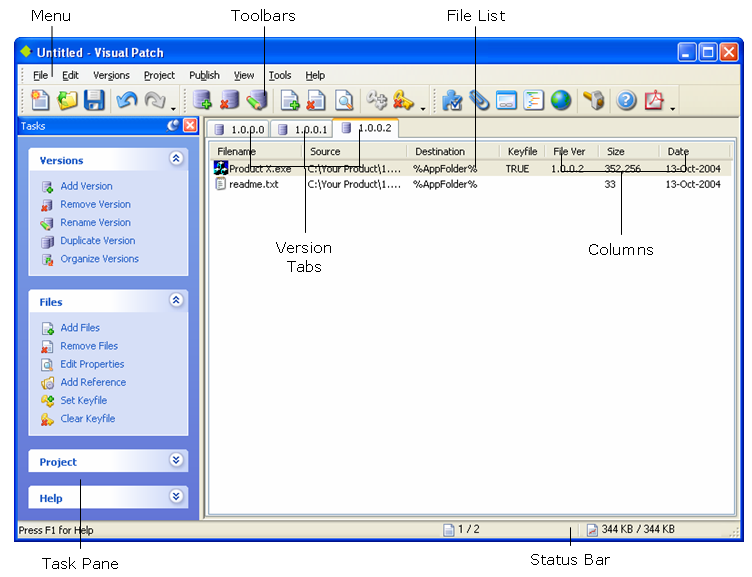
Most of the program window is taken up by the version file lists, which is where all the files in each version of your project are listed. The number of version lists depends upon how many versions you have for your software. You can switch between each version's file list by clicking on their respective tabs.
At the very bottom of the window, a status bar reflects your interaction with the program and offers a number of informative readouts.
The rest of the program window is made up of individual sub-windows known as panes. Each pane can be docked, tabbed, pinned, resized, dragged, and even made to float on top of the design environment.
Learn More: Indigo Rose Software - Visual Patch - Buy Now - Contact Us