Introduction |

|

|
|
Introduction |
|
|
Introduction |
|
|
|
Introduction |
|
|
|
|
||
This document will introduce you to the LuaScript scripting language.
LuaScript scripting is very simple, with only a handful of concepts to learn. Here is what it looks like:
a = 5;
if a < 10 then
Dialog.Message("Guess what?", "a is less than 10");
end
(Note: this script is only a demonstration. Don't worry if you don't understand it yet.)
The example above assigns a value to a variable, tests the contents of that variable, and if the value turns out to be less than 10, uses a LuaScript action called "Dialog.Message" to display a message to the user.
New programmers and experienced coders alike will find that LuaScript is a powerful, flexible yet simple scripting environment to work in.
Here is a short tutorial showing you how to enter a script into the IRScriptEditor and run it using the LuaScript DLL to see the results:
1. In an existing or new setup project, select Actions > Custom Actions from the menu. Next, click the "Add" button and select "Run LuaScript."
2. On the Settings tab of the "Run LuaScript" dialog, click the "Edit" button. This will ask you if you want to create and edit a new LuaScript file. Once you've selected a name and location, the file will be opened in the Indigo Rose Script Editor application.
3. In the Indigo Rose Script Editor, type in the following text, save the file, and close the editor:
Dialog.Message("Title", "Hello World");
4. Follow the instructions in the article Using LuaScript in Your Installer to complete the Run LuaScript custom action.
5. Choose Build > Build Installer from the menu.
6. Once your project has finished building, run the created setup file.
When the custom action is run, the script you entered will be performed. You should see the following dialog appear:
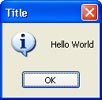
Congratulations! You have just made your first script. Though this is a simple example, it shows you just how easy it is to make something happen in LuaScript. You can use the above method to try out any script you want .
Learn More: Indigo Rose Software - MSI Factory - Buy Now - Contact Us