Menu Bar |

|

|
|
Menu Bar |
|
|
Menu Bar |
|
|
|
Menu Bar |
|
|
|
|
||
OverviewDialogMenu ItemSample Menu
Adding functionality to a menu bar is as easy as adding a few if statements to the On Menu event of your page. For this example, we will be interacting with the following menu bar:
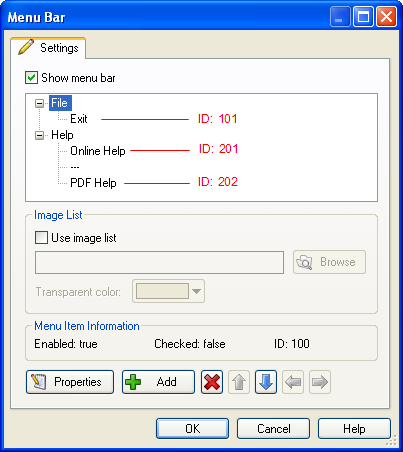
With the above settings, the menu bar will appear as follows:
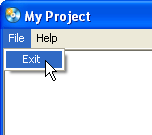
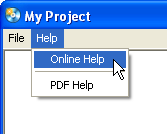
We have three tasks to perform with this menu bar:
For this task, we'll use the following action:
Application.Exit();
For this task, we'll use the following action:
File.OpenURL("http://www.indigorose.com/onlinehelp.htm", SW_SHOWNORMAL);
For this task, we'll use the following action:
File.Open(_SourceFolder .. "\\AutoPlay\\Docs\\PDF_Help.pdf", "", SW_SHOWNORMAL);
Now that we have the scripts that we'll use, the only task left is to tie the actions to the menu bar. This is accomplished by using the page's On Menu event, and a few if statements:
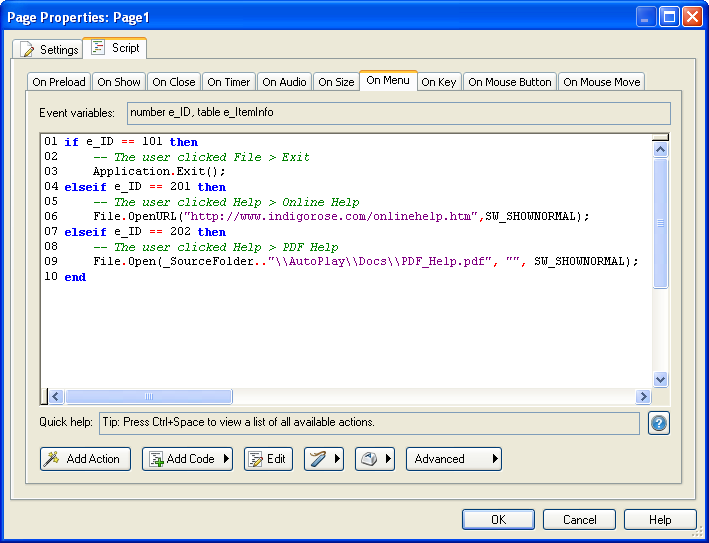
And like magic, your application is now sporting a shiny, fully loaded (and fully functional) menu bar.
Learn More: Indigo Rose Software - AutoPlay Media Studio - Buy Now - Contact Us