Build Settings |

|

|
|
Build Settings |
|
|
Build Settings |
|
|
|
Build Settings |
|
|
|
|
||
OverviewOutputUploadConstantsCode SigningResourcesPre/Post Build
The settings below allow you to sign or dual-sign the update during the build process using SHA-256 and/or SHA-384 / SHA-512. When both Sign with SHA-256 and Append a second signature are selected, TrueUpdate will run the specified signing tool twice, first signing with SHA-256 and then a second time to append a SHA-384 or SHA-512 signature. To support the widest variety of OS's, we recommend dual-signing your updates.
As of January 1, 2016 Windows 7 and higher will no longer trust new code that is signed with a SHA-1 certificate. All files should be signed with a SHA-256 certificate. To be compatible with Windows XP SP3 and Windows Vista you must dual-sign your updates by also enabling the Sign with SHA-1 option. To be compatible with OS's prior to Windows XP SP3 that don't support SHA-256 signatures, you may dual-sign using two different certificates (SHA-256 and a full SHA-1 certificate - if one can be obtained). See Windows Enforcement of Authenticode Code Signing and Timestamping, and Authenticode Code Signing for more information.
Note: The minimum requirements for signing with SHA-256 using SignTool is Windows 7 SP1, and SignTool version 6.1.7600.16385 or higher, which comes with the Windows 7.1 SDK. As a result TrueUpdate's design environment must be run on Windows 7 SP1 or higher to perform SHA-256 signing using SignTool.
Dual-signing using SignTool is only supported in version 6.3 or higher of SignTool.exe which comes with the Windows 8.1 SDK. We recommend using the version found in either the Windows Software Development Kit (SDK) for Windows 8.1, or the Windows Software Development Kit (SDK) for Windows 10 in TrueUpdate for full functionality.
See Authenticode Code Signing for more information on code signing.
Tip: See the Code Signing section of the preferences (Edit > Preferences, Code Signing) to configure default values when creating new projects.
Tip: If you're using a different code signing tool that contains different options, or you require further control, you may leave the settings fields blank (except for the tool), and instead specify the options in the Additional arguments field. If "SignTool.exe" is detected as the tool, TrueUpdate will automatically pass the "sign" command. If you're not using SignTool and require a different command, add it as the first value in the Additional arguments field.
Tip: If you're having trouble with the signing step and want to see the resulting signing commands that are being used, you can find the full command in the update's build status.
Note: Changing any of the setting below after the initial release of the client executable will cause the distributed client executable to update itself when run.
If checked, the update client will be code signed during the build process using the settings below. See Authenticode Code Signing for more information.
The full path and filename of the code signing tool SignTool.exe on your system. You can click the Browse button to select the file. This tool could not be distributed, but is available in the \Windows Kits\XX\bin\x86 folder of the Windows Software Development Kit (SDK). For more information, see MSDN: SignTool (Windows), Windows Software Development Kit (SDK) for Windows 8.1, Windows Software Development Kit (SDK) for Windows 10.
Tip: If you're using a different code signing tool that contains different options, or you require further control, you may leave the settings fields blank (except for the tool), and instead specify the options in the Additional arguments field. If "SignTool.exe" is detected as the tool, TrueUpdate will automatically pass the "sign" command. If you're not using SignTool and require a different command, add it as the first value in the Additional arguments field.
If you use a certificate on a hardware token, and do not see the prompt for the PIN/password during the build process, then you may need to select this checkbox. A typical error message when you need this option is this:
Error information: "Error: SignerSign() failed." (-2147023673/0x800704c7)
The URL of a SHA-256 timestamp server such as: http://timestamp.comodoca.com/?td=sha256. Refer to your certificate provider's documentation for the server URL to use.
If this value is provided, /fd 256 /tr <timestamp_url> /td sha256 will be added to the signing command.
Select this option if your certificate is stored in a "Personal Information Exchange" file (*.PFX, *.P12).
The full path and filename of the SHA-256 certificate to use when signing the patch file. This file must be a "Personal Information Exchange" file (*.PFX, *.P12). You can click the Browse button to select the file.
If the SHA-256 certificate is provided, /f <certificate_path> /fd sha256 will be added to the signing command.
If the SHA-256 certificate is provided and Append a second signature is also enabled (dual-signing), /as will also be added to the signing command.
The password to use for opening your SHA-256 certificate file (*.PFX, *.P12) if it's password protected. You can leave this value blank if your certificate is not password protected.
If this value is provided, /p <password_value> will be added to the signing command.
Select this option if your certificate can be accessed via the Certificate Manager in Windows.
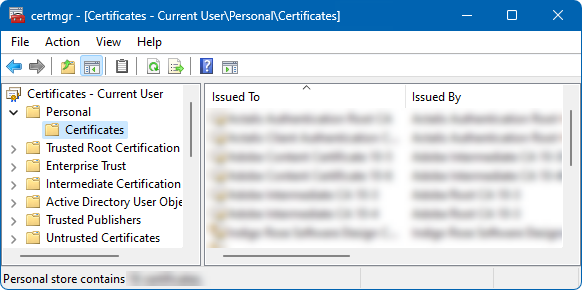
This field allows you to enter any the name shown in "Issued To" (partial strings are also allowed, if they are unique) to identify the certificate to be used during the code signing process.
If this value is provided, /n <subject_name> will be added to the signing command.
This field allows you to enter the SHA1 hash of the signing certificate. This may be used if you have more than one certificate with the same subject name.
If this value is provided, /sha1 <hash> will be added to the signing command.
In the future, it might become a requirement to double-sign your file with a second signature, such as SHA-384 or SHA-512. In this case, enable this option, and select the desired algorithm below.
Select this option if you want to double-sign with SHA-256 and SHA-384.
Select this option if you want to double-sign with SHA-256 and SHA-512.
The URL of a the timestamp server matching the chosen algorithm. Refer to your certificate provider's documentation for the server URL to use.
If this value is provided, the parameters /fd384 /tr <timestamp_url> /td sha384 or /fd512 /tr <timestamp_url> /td sha512 will be added to the signing command.
This field allows you to enter any additional options you would like to pass to the code signing tool beyond TrueUpdate's automatic parameters. If you leave any of the SHA-1 related fields blank (except for tool location), you can manually pass their values using this field. The values entered here are appended to the beginning of the parameter list. When "SignTool.exe" is the chosen tool, TrueUpdate automatically passes the "sign" command as the first argument.
The description of the signed content.
If this value is provided, /d <description_value> will be added to both signing executions (SHA-256 and SHA-384/SHA-512 signing steps).
A URL that provides further information about the signed content.
If this value is provided, /du <description_url> will be added to both signing executions (SHA-256 and SHA-384/SHA-512 signing steps).
Learn More: Indigo Rose Software - TrueUpdate - Buy Now - Contact Us