Using Authenticode Code Signing |

|

|
|
Using Authenticode Code Signing |
|
|
Using Authenticode Code Signing |
|
|
|
Using Authenticode Code Signing |
|
|
|
|
||
MSI Factory
How can users trust code that is published on the Internet? Two issues that must be addressed are those of ensuring integrity and authenticity. Authenticity assures users that they know where the code came from. Integrity verifies that the code hasn't been tampered with since its publication.
In the Microsoft article titled Introduction to Code Signing, they write:
Microsoft's solution to these issues is Microsoft Authenticode coupled with an infrastructure of trusted entities. Authenticode, which is based on industry standards, allows developers to include information about themselves and their code with their programs through the use of digital signatures.
While Authenticode itself cannot guarantee that signed code is safe to run, Authenticode is the mechanism by which users can be informed of whether the software publisher is participating in the infrastructure of trusted entities. Thus, Authenticode serves the needs of both software publishers and users who rely upon the Internet for the downloading of software.
If you plan to distribute your software over the Internet it's highly recommended that you sign your updates and software. When a customer downloads and runs your software, they will be presented with a security warning dialog asking the user if they really want to run your software as it may pose a security risk. On that dialog, they will see "Unknown Publisher" if it is not signed. On the other hand, if you do sign your code, they will instead see your company name and an optional web link to follow for more information.
Another point of consideration beyond user experience is the fact that more recent versions of Windows have the ability to prevent any unsigned applications from launching with full privileges. This may impact both the installing and application functionality.
In the Microsoft article titled Windows Enforcement of Authenticode Code Signing and Timestamping they state:
Effective January 1, 2016, Windows (version 7 and higher) and Windows Server will no longer trust new code that is signed with a SHA-1 code signing certificate for Mark-of-the-Web related scenarios (e.g. files containing a digital signature) and that has been time-stamped with a value greater than January 1, 2016. This cut-off date applies to the code-signing certificate itself.
This restriction will not apply to the time-stamp certificate used to time-stamp the code-signing certificate or the certificate's signature hash (thumbprint) until January 1, 2017. After this time, Windows will treat any code with a SHA-1 time-stamp or SHA-1 signature hash (thumbprint) as if the code did not have a time-stamp signature. (The January 1, 2017 timeline may change).
This means that any files signed after Jan 1, 2016 must be signed with a SHA-256 based signature. If you're still using a SHA-1 certificate and haven't gotten a replacement signature yet, you should do so as soon as possible.
As of version 2.3.1000.0, MSI Factory no longer supports signing with SHA-1.
SHA-256 signatures are supported on Windows 7 and later versions.
If you would like to purchase a code signing certificate, they are available from a number of companies such as DigiCert, SLL, Sectigo, etc.
It can take from a few days to a couple weeks for your application to be approved and your certificate issued. Keep in mind that you will likely need to provide supporting documentation to prove you actually are who you say you are. It's not something to be taken lightly and will likely require senior management to be involved.
Further instructions are provided by the certificate issuer.
Now that you have a code signing certificate, you'll need to download some software from Microsoft so you can start using it.
| 1. | The current tool available from Microsoft to digitally sign files is called "SignTool.exe". This tool is installed in the \Windows Kits\XX\bin\x86 folder (or x64) of the Windows Software Development Kit (SDK). The minimum version you should use that supports dual-signing can be found in the Windows Software Development Kit (SDK) for Windows 8.1, or you can use a later version such as the Windows Software Development Kit (SDK) for Windows 10. |
| 2. | Install the package to your system and locate the tool "signtool.exe" found in the \Windows Kits\XX\bin\x86 folder. |
Once the Authenticode file signing tool is installed on your system, you are ready to start signing your update. The following settings will provide compatibility with Windows XP SP3 and later OSs.
| 1. | Before publishing your update, select Publish > Settings from the menu and click on the Code Signing tab. |
| 2. | Check the "Code sign updates" checkbox and browse for "signtool.exe" on your system. |
| 3. | Select "Use certificate stored in a *.pfx file", if you still have a valid certificate exported to a file with a private key. Enter the certificate password, if it is password protected. |
| 4. | If you have a new certificate, issued after June 2023, it will be stored in a secure container, which may be a physical device such as FIPS-compliant token, or in the cloud. In such case, you will typically use the option "Use certificate in personal store" instead, where the certificate will reside after you imported it. |
| 5. | Enter the "SHA-256 timestamp URL" provided to you by your certificate issuer (refer to your certificate provider's documentation for the server URL to use). |
| 6. | Enter your "Description" and "Description URL". |
| 7. | Save the changes and then publish your setup by selecting Build > Build Installer. |
Tip: See the Code Signing Defaults section of the Preferences (Edit > Preferences, Code Signing page) for configuring defaults to use for code signing your updates every time you start a new project.
To verify that everything went according to plan and view your signature, SignTool.exe contains the verify command that determines whether the signing certificate was issued by a trusted authority, whether the signing certificate has been revoked, and, optionally, whether the signing certificate is valid for a specific policy. Simply run SignTool.exe and pass it the option verify followed by the full path to the update client file.
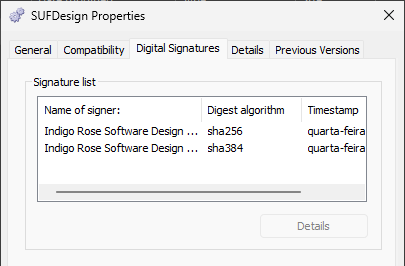
Alternatively, you can right-click the file name and select "Properties" from the context menu (You may need to click "Show more options" in case it does not appear immediately). Once the Properties dialog opens, click the "Digital Signatures" tab, and you should see the list of signatures of the file. In details, you can see further information for each signature and check if it is valid, or if there is an issue.
There are many good resources on the Internet for finding out more about code signing, Authenticode, Windows XP/Vista or later, Security and related issues. Here are a few places to start.
Copyright © 2019-2024 Indigo Rose Software. All rights reserved.
Learn More: Indigo Rose Software - MSI Factory - Buy Now - Contact Us